 PoppyDisk User Guide
Update PoppyDisk
Install the latest stable version from inside PoppyDisk.
When you finish, PoppyDisk closes, installs the latest stable version, and reopens with your Cleanup Basket and Pinned Folders unchanged.
The Store Edition
If you installed PoppyDisk from Microsoft Store, the Store installs Updates for you, usually in the background. PoppyDisk itself shows no Check for updates, no Update available button, and no update dialog, and it never asks downloads.poppydisk.com for a version. The rest of this page describes the Direct-download Edition.
To look for an Update yourself, open Microsoft Store, choose Downloads (or Library in older versions of the Store), then Get updates. Close PoppyDisk first so the Store can replace it. Your Cleanup Basket and Pinned Folders stay as they are.
When PoppyDisk checks
PoppyDisk checks for an Update once shortly after it starts and whenever you choose Check for updates. It does not check again automatically while it stays open. A failed automatic check stays silent.
Demo Mode never checks for an Update.
An update check asks downloads.poppydisk.com for the current version. The request carries your IP address and the updater's version string. It sends nothing about you, your Drives, or this PC, and the request is kept only in the server's security logs. See What PoppyDisk sends and stores.
Know when an Update is available
When PoppyDisk finds an Update:
- An Update available button appears next to More options in every view. Choose it to open the update dialog. When the window is narrow, the label shortens or hides.
- A small dot appears on More options in every view. Its tooltip and accessible name say Update available.
- The last item under More options changes from Check for updates to Update to X, where X is the new version.
PoppyDisk does not show a toast or open the update dialog after an automatic check.
Download and install the Update
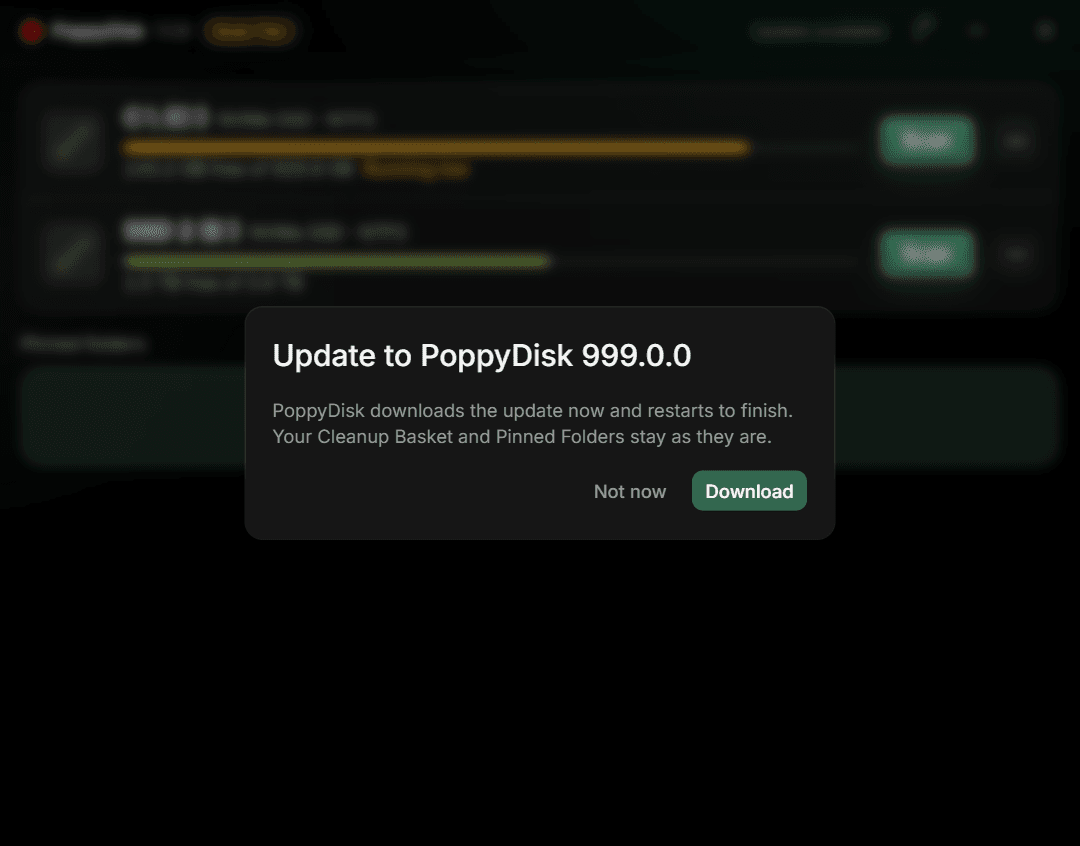
- Choose More options, then Update to X. The dialog is titled Update to PoppyDisk X and says that PoppyDisk downloads the Update now and restarts to finish. It also confirms that your Cleanup Basket and Pinned Folders stay as they are.
- Choose Download. The dialog shows a progress bar and the amount received, such as Downloading 4.2 of 12.5 MB. You cannot choose Download again while it runs.
- Wait for Ready to install. PoppyDisk closes and reopens by itself. If you installed PoppyDisk from an MSI, the dialog also says Windows will ask for permission to install. The standard Windows permission prompt appears when the MSI starts.
- Finish or cancel every running or queued Scan, and wait for any deletion to finish.
- Choose Restart now. This is the Restart to update step: PoppyDisk closes, installs the Update, and reopens by itself.
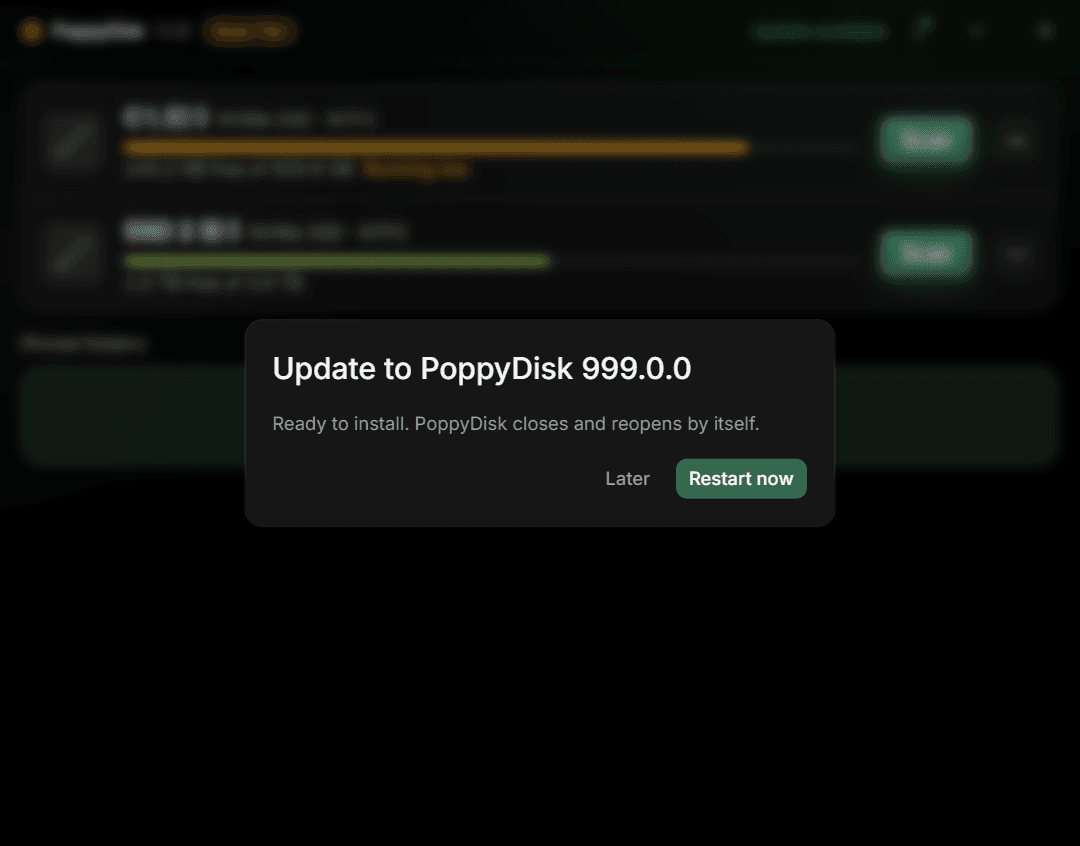
Choose Not now before downloading, or Later after the download, to close the dialog. The dot and Update to X stay available. A downloaded Update also stays ready, so you can return and choose Restart now later.
If a Scan or deletion is active
PoppyDisk will not Restart to update while a Scan is queued or running or while a deletion is in progress. Your downloaded Update stays ready.
- During a Scan, Restart now stays disabled and the dialog says Finish or cancel the running Scan first. It becomes available when the Scan finishes or is cancelled.
- During a deletion, Restart now stays disabled and the dialog says Wait for the deletion to finish. It becomes available when the deletion finishes.
Choose Restart now when the work has finished.
Check manually
- Choose More options, then Check for updates.
- If you have the current version, PoppyDisk reports PoppyDisk X is up to date.
- If PoppyDisk finds an Update, the update dialog opens. Choose Download to continue.
If the check fails, PoppyDisk reports Could not check for updates with the reason. Check your connection and try again.
If the download or verification fails
PoppyDisk verifies the downloaded installer before it can run. If the download does not complete, the dialog says The update could not be downloaded. If its signature cannot be verified, it says The update could not be verified.
Choose Download from the website in the dialog, then run the current installer by hand. The Update offer stays visible until the Update is installed. See Fix install and download problems if that download also fails.
Update an older copy once by hand
Copies released before PoppyDisk gained in-app updates cannot find an Update themselves. If More options does not include Check for updates, download the current installer from poppydisk.com/download/windows and run it once. Future Updates can then use the steps above.