 PoppyDisk User Guide
Switch to Tree view
Read the same result as a keyboard-navigable list instead of a map.
When you finish, the result is shown as a list you can expand and walk with the keyboard, and PoppyDisk remembers that choice for the next result.
Switch views
- In a Scan result, choose Tree in the Map and Tree control at the bottom right of the map area. The rings are replaced by a table with the columns Name, Size on Disk, Share, and Items. The scanned location is the first row, and its children sit under it.
- Choose Map to go back to the rings.
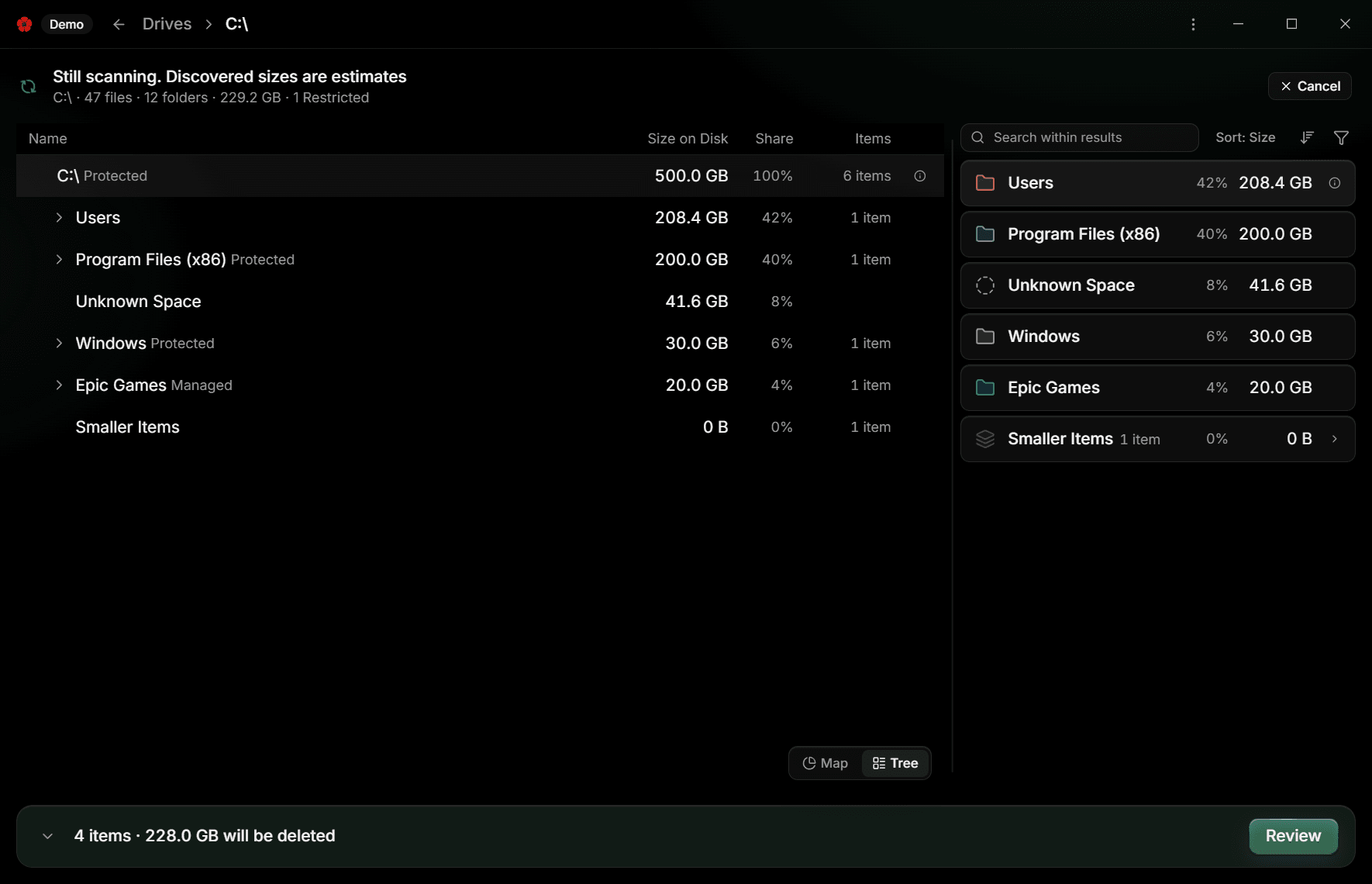
Whichever view you choose is kept for every result you open afterwards, until you switch again.
Both views show the same result and the Details Panel works the same way beside either. The map shows proportion at a glance; the tree shows exact figures, states written out beside each name, and a path you can follow one row at a time.
Move through the tree
Every action in the tree has a key:
- Up and Down move between rows. Home and End jump to the first and last.
- Right expands a folder to show its children in place. Left collapses it again.
- Enter Drills into the selected folder, so it becomes the root of the tree. Backspace Drills back out.
- The info button on a row, or the I key, opens the Inspector on that row. See Inspect one item.
- Ctrl+B, or the right-click menu, adds the selected row to the Cleanup Basket. See Collect items in the Cleanup Basket.
Rows that could not be measured say Size unknown where their size would be. See What the sizes mean.
When the tree opens by itself
If Windows is using a contrast theme, PoppyDisk opens results in Tree view by default. The map is drawn on a canvas that a contrast theme cannot recolour, while the tree is ordinary text the theme restyles like everything else. You can still choose Map.
For the full non-pointer path through PoppyDisk, see Use PoppyDisk with a keyboard or a screen reader. For what each action looks like on the map, see Read the Disk Map.