 PoppyDisk User Guide
Collect items in the Cleanup Basket
Gather deletion candidates without touching a single file.
When you finish, the Cleanup Basket shows a count and a total Size on Disk, and nothing on your Drive has changed.
The Cleanup Basket is the bar along the bottom of every Scan result. Adding an item to it never deletes, moves, or modifies that item. It is a list of candidates, and it stays a list until you review it and confirm. See Review before you delete.
Prerequisites
Before you start
A finished Scan. See Scan a Drive. Collecting is part of the Scan Tier, so no License Key is needed to fill the basket.
Add an item
-
Find the file or folder in the Details Panel, the Tree view, or on the Disk Map. See Find a specific item.
-
Add it in whichever way suits you:
- Right-click it and choose Add to Cleanup Basket.
- Select its row and press Ctrl+B.
- Drag its row, or its Segment on the Disk Map, onto the basket bar and drop it.
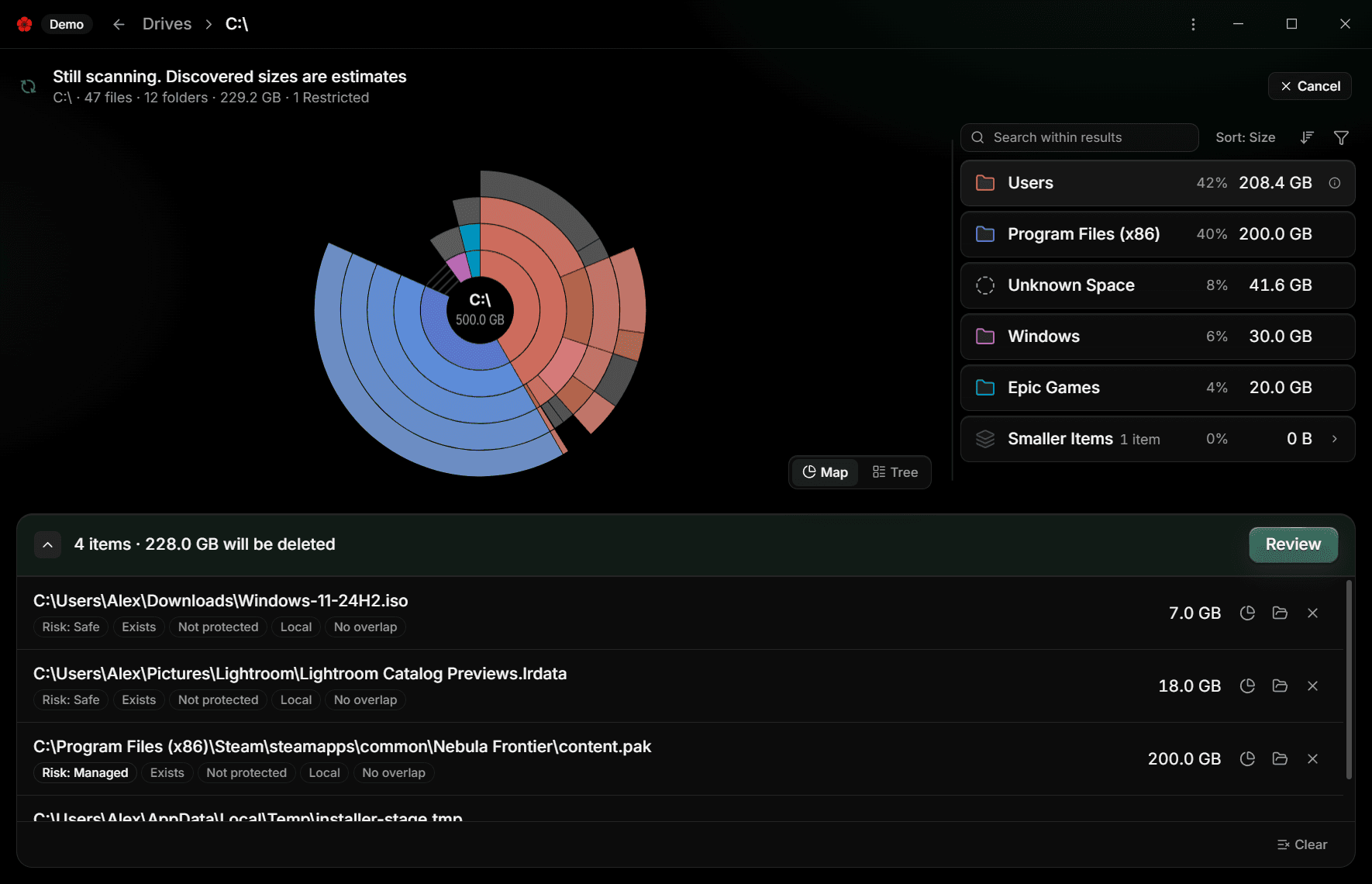
PoppyDisk confirms with Added to the Cleanup Basket, and the bar reads how many items it holds and how much will be deleted, for example 1 item · 7.0 GB will be deleted.
Three things can happen instead of a plain add:
- Already in the Cleanup Basket: the item was already collected.
- Already included: a folder you collected earlier already contains it, and PoppyDisk names that folder.
- Parent folder added: you collected a folder that contains items already in the basket. Those items fold into the folder, and PoppyDisk says how many. The basket keeps one entry per subtree, so no bytes are counted twice.
When an item is refused
PoppyDisk refuses some items, and says why with Could not add the item:
- Protected items cannot be added. A Protected item cannot enter the basket at all. This is enforced by PoppyDisk itself, not a warning you can dismiss. While you drag a Protected item over the bar, the bar reads that the item is Protected and PoppyDisk will not collect it. See Understand Risk.
- Expand Smaller Items before adding a concrete item. The Smaller Items group is a picture, not a thing you can delete. Expand it and collect the actual items. See What the sizes mean.
- A Drive root is Protected, so a whole Drive can never be collected.
Read the basket
Choose the arrow at the left of the bar, or the bar itself, to expand the basket. Each row shows the item's full path, its Size on Disk, and a line of badges:
- Risk: Safe, Risk: Caution, Risk: Managed, or Risk: Protected. See Understand Risk.
- Exists, Not in this Scan, or Missing. See below.
- Not protected, or Protected if the current rules now protect a saved item.
- Local or Cloud-only. Deleting a Cloud-only file gives back almost no local space.
- Hard link, when other paths lead to the same content. Shared content returns space only after every link is removed. See What the sizes mean.
Each row offers three actions: Show in the Disk Map, Reveal in File Explorer, and Remove from the Cleanup Basket. Removing an item from the basket only takes it off the list.
Items from an earlier session
The basket is saved between launches. When you open a Scan, PoppyDisk checks every saved entry against the current result and the current rules, and labels what it finds:
- Exists: still there and part of this Scan.
- Not in this Scan: saved from a different location. It stays listed and can still be revealed, but this Scan cannot delete it. Open the Scan it belongs to.
- Missing: no longer on the Drive. It cannot be revealed or deleted. Remove it.
A saved item that current rules now grade Protected shows the Protected badge and will be excluded at review.
Clear the basket
Choose Clear at the bottom of the expanded basket. PoppyDisk asks Remove every item from the Cleanup Basket? and explains that this only clears the list. Choose Clear basket to confirm, or Cancel. No file or folder is modified either way.
Before you have the Clean Tier
Collecting is free. Until PoppyDisk is unlocked, the bar still counts and totals what you collect, but its list cannot expand and Review opens the Clean Tier wall instead of the Deletion Review. See What the Scan Tier and the Clean Tier include.
When the basket holds what you want gone, choose Review. See Review before you delete.