 PoppyDisk User Guide
Clean through the app that owns the files
Use Windows or the owning application where that is the safer path.
When you finish, you have recovered space from a location another program looks after by using that program, or you know why PoppyDisk let you delete from it anyway.
The notice
Some folders are large because a program keeps its working data there: a game library, a virtual machine's image, a cloud sync folder, Windows' own update cache. Deleting from them by hand frees the space but leaves the owner with records that no longer match, and sometimes breaks it.
When you Drill into such a folder, PoppyDisk shows a notice above the map. It names the location, says who owns the space and how that owner recovers it, and, when a Windows Settings page manages it, offers a button that opens that page. The notice only explains and links. PoppyDisk never cleans one of these locations for you.
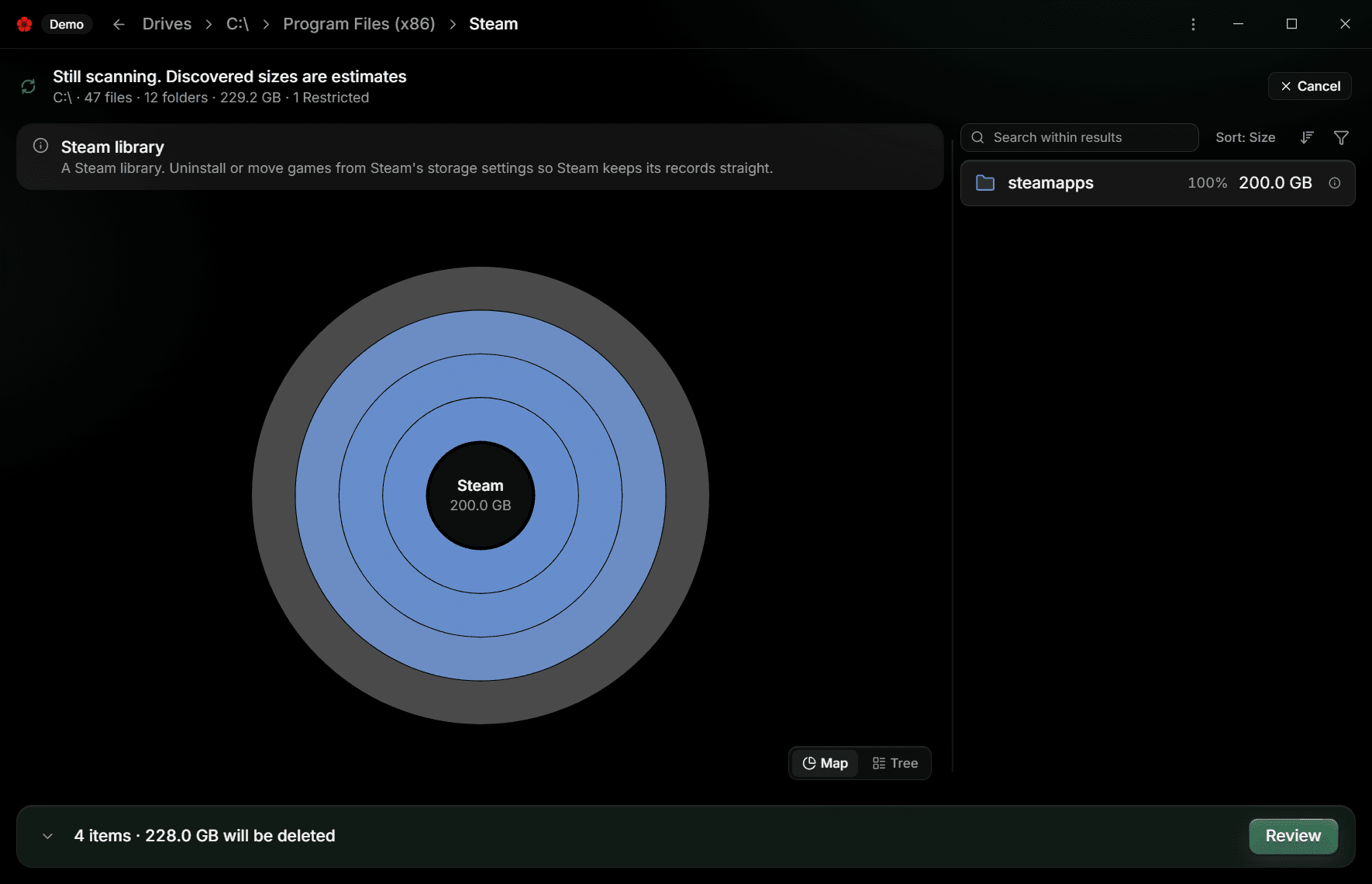
Which locations get a notice
| Location | What the notice says to do |
|---|---|
| Your Downloads folder, the Windows Recycle Bin, Temporary files | Review or empty them yourself, or let Storage Sense do it. Open Storage Sense settings or Open Storage settings opens the page. |
| Windows Update cache | Leave it. Windows cleans it up itself, and deleting the files can interrupt updates. Open Windows Update settings opens the page. |
| Windows component store, System Restore data | Leave them. Windows services the component store on its own; restore points are managed through System Protection. |
| Previous Windows installation | Windows removes it about ten days after a new version of Windows is installed. Open Cleanup recommendations removes it sooner. |
| OneDrive sync folder, other cloud sync folders | Deleting here also deletes from the cloud on the next sync. Use the sync app's own option to keep files in the cloud, such as OneDrive's Free up space, to recover local space. |
| Docker Desktop data, a WSL distribution, Hyper-V data, other virtual machine files | Shrink or remove them from inside Docker, WSL, Hyper-V Manager, or the app that made them. Deleting the files can destroy the machine. |
| Steam library, Epic Games library, Xbox game installs, Microsoft Store apps | Uninstall or move games from the launcher, or from Open Installed apps, so it keeps its records straight. |
| Device backups, app caches | Delete old backups or clear the cache from inside the app that made them. |
If the Windows page cannot be opened, the notice says Windows Settings could not be opened. Open Settings yourself and find the page by name. See Fix Cleanup Basket and deletion problems.
Use the owner
- Read the notice and, if it offers one, choose its button. The Windows Settings page opens beside PoppyDisk.
- Recover the space there, or in the owning app the notice names.
- Back in PoppyDisk, choose Rescan on the Drive Overview, or refresh the branch if it is marked Stale, to see the result. See Refresh Stale results.
When you delete anyway
Items inside these locations are graded Managed in the Cleanup Basket: owned by another app, but not refused. You can collect and delete them, and the Deletion Review repeats the owner's warning before you confirm. See Understand Risk: Safe, Caution, Managed, Protected and Collect items in the Cleanup Basket.
Some of these locations sit inside places PoppyDisk marks Protected, such as the Windows installation itself. PoppyDisk refuses to put a Protected item in the basket at all; the notice's route through Windows is the only one.