 PoppyDisk User Guide
Scan a Drive
Measure a whole Drive and reach a result you can read.
When you finish, the Scan is complete and its Disk Map is open.
The Drive Overview
PoppyDisk opens on the Drive Overview. Each row is one Drive: its name and letter, its kind and file system, a capacity gauge, how much is free of its total, and when it was last scanned. A Drive that is running out of space says Running low or Critically full beside its free space.
The overview lists internal Drives, removable Drives, and mounted network Drives. A network Drive that is not currently reachable stays in the list, marked Not reachable, so you can still open its last results. Optical discs, the EFI and recovery partitions, service and hidden volumes, and volumes without a letter are deliberately absent: there is nothing on them you can clean.
Scan
- Choose Scan on the Drive's row. The Scan view opens, headed Still scanning. Discovered sizes are estimates, with a live line under it: the path being measured, files and folders found so far, bytes measured, and how many items are Restricted.
- Wait for the counters to stop. The heading disappears and the finished result is shown: the Disk Map on the left and the Details Panel on the right, listing the Drive's top-level folders by Size on Disk.
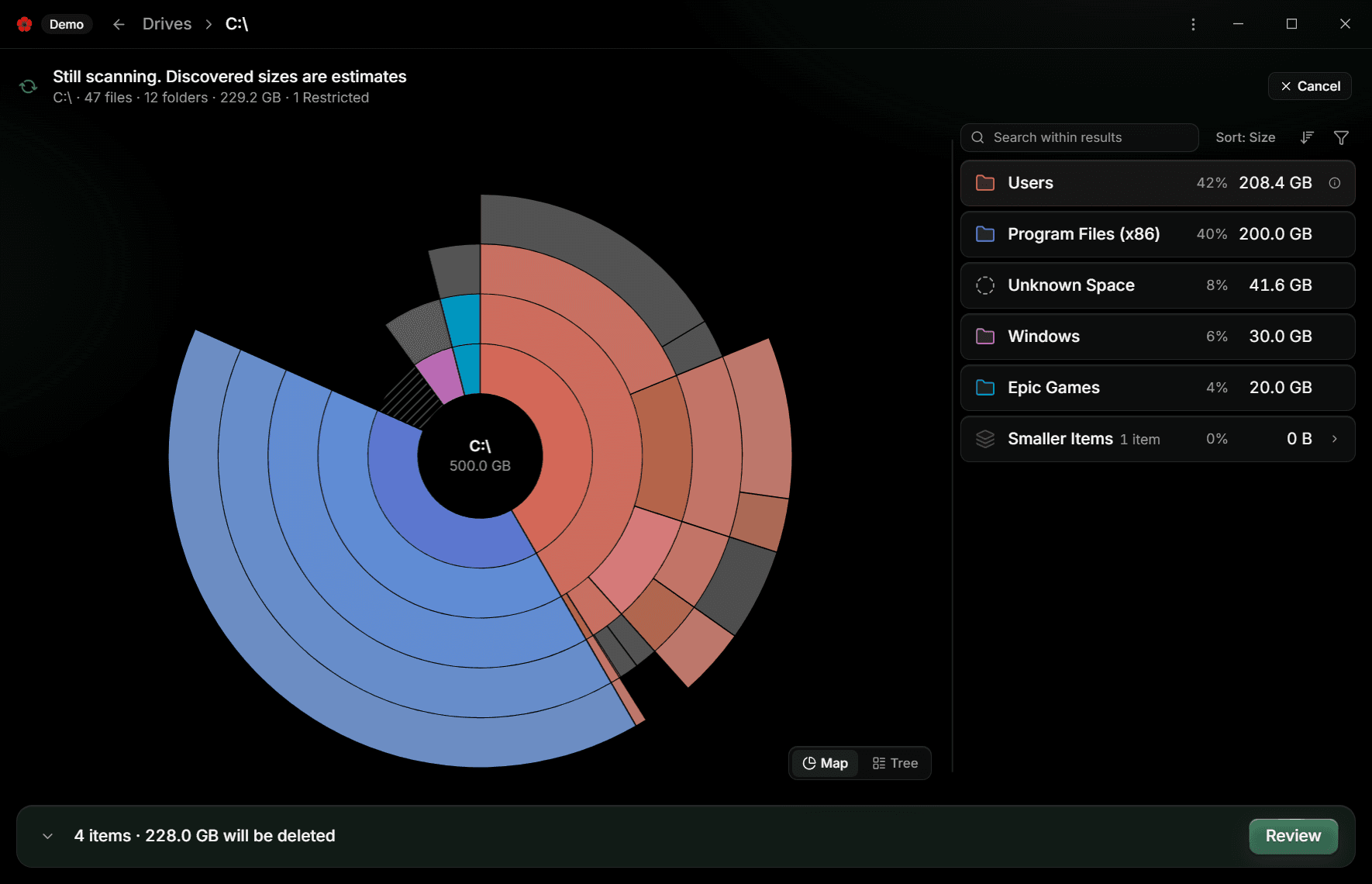
You can leave the Scan view while it runs. The Scan continues, and its row on the Drive Overview shows the same live counters until it finishes. Return to the row, or choose the row itself, to open the result. PoppyDisk runs at most two Scans at once; a third waits as Scan queued.
To stop a Scan, choose Cancel in the Scan view or Cancel Scan in the row's menu. The view then says The Scan was cancelled. A cancelled Scan is not presented as a result; start a new Scan when you want one.
Read the result
- Every number is Size on Disk, the space an item actually occupies. What the sizes mean explains that measure and the states beside it.
- Unknown Space on the Drive root is used space the Scan could not attribute to any folder, and rows marked Restricted are areas Windows kept private from an ordinary Scan. If a large amount of space came back that way, measure Restricted areas.
- To find where the bytes went, read the Disk Map.
Scan again
Once a Drive has results, its button reads Rescan. Choosing it starts a new Scan of the whole Drive and replaces the saved result when it completes. Choosing the row without pressing the button opens the existing result instead.
If only one folder changed since the Scan, PoppyDisk marks that branch Stale and offers a smaller Rescan. See Refresh Stale results.
The row menu
The More actions button on a row opens a menu:
- Scan or Rescan, and Cancel Scan while a Scan is running.
- Scan as administrator, which is shown but disabled, marked Not yet. The working administrator actions are in the Scan result. The Store Edition has none yet. See Measure Restricted areas.
- Forget results, which removes the saved Scan result for that Drive. It never touches the files on it.
- Open in File Explorer and Properties, which open the Drive in Windows.
If the Scan does not start
A Scan that cannot start reports Could not start the Scan on the Drive Overview, with the reason from PoppyDisk's scanner. Dismiss it and try again. See Fix scanning and results problems.
To measure one folder instead of a whole Drive, see Scan a folder and keep it pinned.