 PoppyDisk User Guide
Delete to the Recycle Bin
The default deletion, and the one you can undo.
When you finish, the selected items have moved to the Windows Recycle Bin, and PoppyDisk reports the Recovered Space Windows confirmed.
Prerequisites
Before you start
A Deletion Review with at least one item selected. See Review before you delete.
Confirm
Caution
The next step deletes the selected items. It is recoverable: a file in the Windows Recycle Bin can be restored until the Recycle Bin is emptied. An item on a source without a Recycle Bin is not recoverable; the review tells you before you confirm.
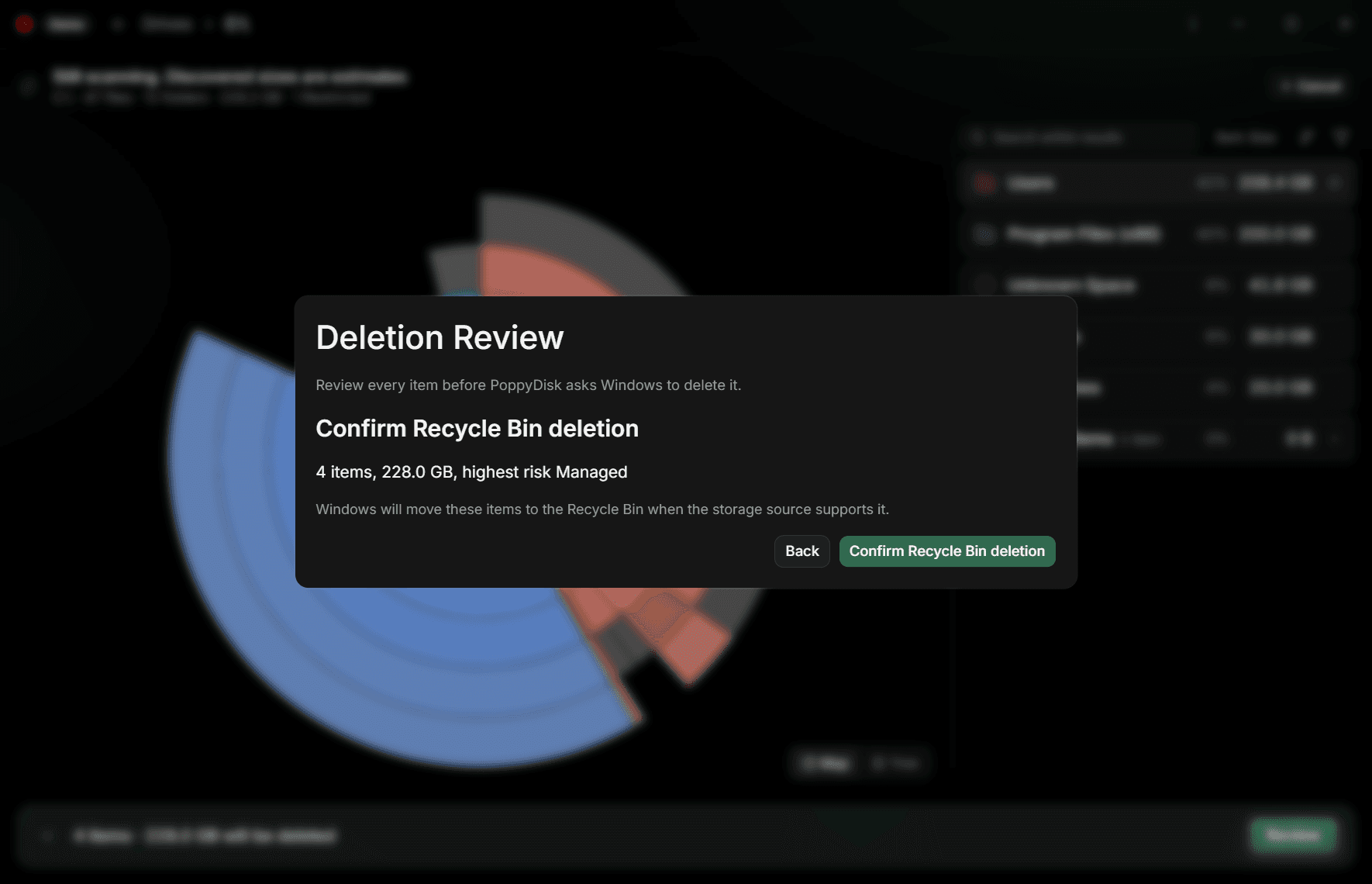
- In the Deletion Review, choose Move to Recycle Bin. The dialog changes to Confirm Recycle Bin deletion and restates what you are about to do: how many items, their total Size on Disk, and the highest Risk among them, for example 1 item, 7.0 GB, highest risk Safe.
- Choose Confirm Recycle Bin deletion. The dialog shows Deleting items while Windows processes every approved item; PoppyDisk continues past individual failures rather than stopping at the first one.
- Read the Deletion report. See Read your Recovered Space report.
Back at the confirmation returns you to the review with nothing deleted.
Restore an item afterwards
Open the Recycle Bin from the Windows desktop, select the item, and choose Restore. It returns to where it was. PoppyDisk does not restore items itself; the Recycle Bin is Windows' own.
After a restore, the Scan no longer matches the Drive. Rescan, or refresh the branch when PoppyDisk marks it Stale, before you trust the sizes again. See Refresh Stale results.
Sources without a Recycle Bin
Windows keeps a Recycle Bin per Drive, and some sources do not have one: many network locations and some removable Drives. The confirmation says that Windows will move the items to the Recycle Bin when the storage source supports it, and the review warns beforehand when an item you selected sits on such a source. For those items, Windows deletes permanently, and the report says so: Permanently deleted instead of moved to the Recycle Bin.
If you want that certainty for every item, choose the permanent path deliberately instead. See Delete permanently.
If something cannot be deleted
If Windows cannot start the deletion at all, the confirmation stays open and shows Windows could not start the deletion. with the reason, so you can try again or go Back. If one item fails while others succeed, the report lists it with the reason and the rest are still deleted. See Fix Cleanup Basket and deletion problems.