 PoppyDisk User Guide
Inspect one item
Get every fact about a single file or folder before deciding anything.
When you finish, the Inspector shows the full path, both sizes, the dates, the owner, and the state of that one item.
Open the Inspector
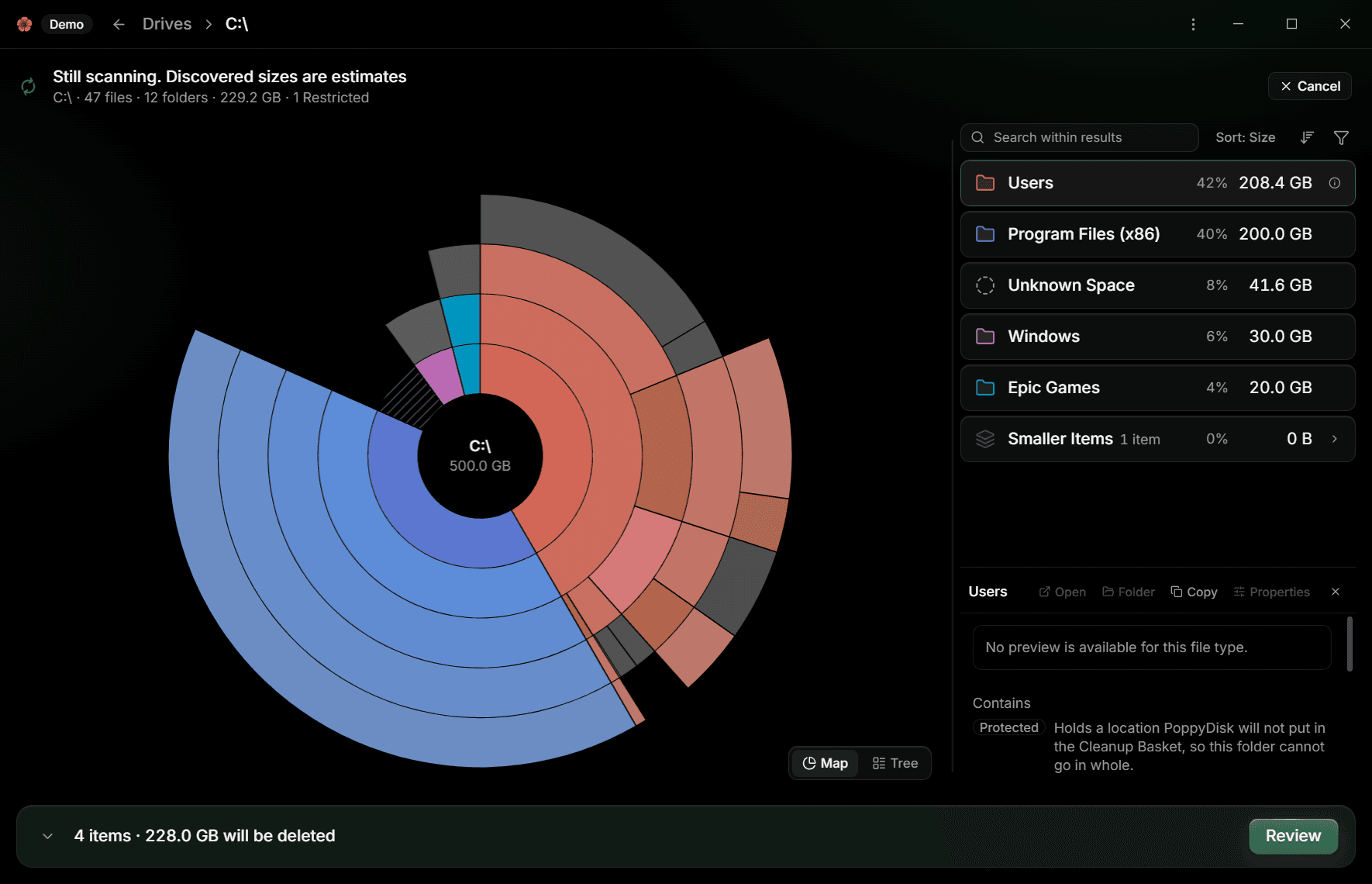
- In a Scan result, choose the info button on a row in the Details Panel or the Tree view, or click once on a file's row, or select a row and press I. The Inspector opens under the Details Panel, headed with the item's name.
- Read it, act from it, or press Escape to close it.
What it tells you
The Inspector holds everything a row leaves out:
- Full path, Size on Disk, and Size. The two sizes differ for compressed, sparse, and Cloud-only files; PoppyDisk counts the first everywhere. See What the sizes mean.
- Created, Modified, and Accessed.
- Type and Owner.
- Access: Readable, Restricted when the Scan could not read it, or Unavailable.
- Cloud state: Available locally or Cloud-only.
- Compressed and Sparse, when either applies.
- Items, for a folder: how many things it contains.
- Protected, when PoppyDisk will refuse to put the item in the Cleanup Basket, and Managed, marked Owned by another app, when another application looks after it. See Clean through the app that owns the files.
- Hard linked, marked Another path to content already counted in this Scan, with the other paths listed under Hard links.
The preview
Above the rows, PoppyDisk shows what it safely can:
- Text files show their beginning, images show a bounded preview, and PDFs show their first page.
- Audio and video files show their details instead, such as Duration, Bit rate, and Channels, and any Title, Artist, or Album the file carries.
When there is no preview, the Inspector says why: Preview is available for files only, Preview unavailable because this item is Restricted, Preview skipped to avoid downloading this Cloud-only file, This file does not contain a supported preview, Preview unavailable because the file changed while it was read, Preview unavailable because the file could not be read, or No preview is available for this file type. PoppyDisk never downloads a Cloud-only file to build a preview, so the space it would take stays free.
In Demo Mode there is no file behind an item, so no real preview appears.
Act on the item
The bar beside the item's name offers:
- Open, which opens the file in the app Windows registers for it.
- Show in File Explorer, which reveals the item in File Explorer.
- Copy Path, which copies the full path. PoppyDisk confirms with Path copied.
- Properties, which opens the Windows Properties dialog for the item.
The Windows actions are disabled for synthetic items in Demo Mode; Copy Path always works. If Windows cannot complete an action, PoppyDisk reports The action could not be completed with the reason.
Once you have decided, collect the item: see Collect items in the Cleanup Basket.
If the Inspector cannot read the item at all, it reports The item could not be inspected and offers Try again. See Fix scanning and results problems.