 PoppyDisk User Guide
Take a tour in Demo Mode
See every screen with synthetic data before pointing PoppyDisk at your own Drive.
When you finish, PoppyDisk is running on a synthetic filesystem, shows a Demo badge in its title bar, and has touched no real file.
Demo Mode is a deterministic, made-up Windows PC: three Drives, two Pinned Folders, and one user named Alex. Everything you do in it stays in memory, and nothing is saved or carried into your next normal launch. Every screenshot in this guide was taken in Demo Mode, so the Drives and folders in the pictures are the ones you will see on the tour.
Prerequisites
Before you start
Install PoppyDisk. Demo Mode is part of the normal app, not a separate download.
Start Demo Mode
- In PoppyDisk's title bar, choose More options, then Open Demo Mode. A second PoppyDisk window opens beside the first, on the Drive Overview, with a Demo badge beside its name in the title bar.
- Use the Demo window for the tour. Your normal window is untouched, and you can close either one at any time.
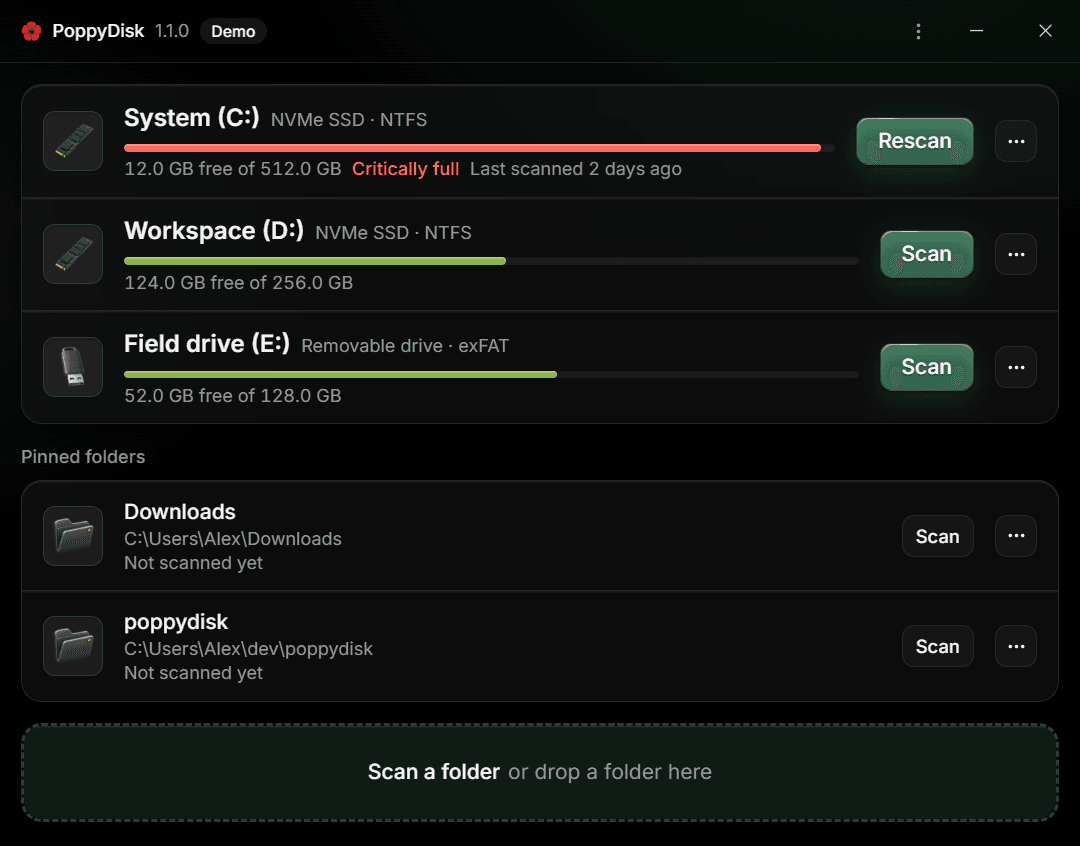
The Demo window's own menu does not offer Open Demo Mode again, because it is already there. If the second window cannot be started, PoppyDisk reports Could not open Demo Mode with the reason.
PoppyDisk also enters Demo Mode when it is started with the --demo argument, or with POPPYDISK_DEMO=1 in its environment, which is how the menu item starts it.
To leave Demo Mode, close the Demo window. Nothing from the tour is kept.
What the tour shows
- The Drive Overview with System (C:), Workspace (D:), and the removable Field drive (E:), plus the Pinned Folders Downloads and poppydisk.
- A Scan of each Drive and its Disk Map, Details Panel, Tree view, search, sort, and filters. System (C:) is the realistic one: game libraries, downloads, videos, and a nearly full Drive. Workspace (D:) holds the edge cases: Cloud-only files, a Stale branch, sparse files, and folders owned by other apps.
- Restricted rows, Unknown Space, Smaller Items, and Hard Links, so you can learn what the sizes mean on data that cannot be wrong.
- The Inspector on any item, with generated dates, sizes, and attributes.
- The whole cleanup sequence: collecting items in the Cleanup Basket, the Deletion Review, Recycle Bin Deletion, Permanent Deletion with its countdown, and the Recovered Space report. Deleting in Demo Mode changes the synthetic result and nothing else, which makes it the safe place to rehearse.
The Clean Tier is unlocked in Demo Mode, so the tour also shows the deletion features without a License Key.
What the tour cannot show
Demo Mode has no real files behind its items, so some parts of PoppyDisk say so plainly or are switched off:
- Previews. The Inspector says no preview is available, because there is no file to read.
- Windows actions. Open, Show in File Explorer, and Properties are disabled for synthetic items. Copy Path works.
- The folder picker and dropping a folder from File Explorer. Pinned Folders are already seeded instead.
- Administrator access. Demo Mode refuses an Elevated Rescan, so Windows never asks for permission. See Measure Restricted areas.
- The Clean Tier before it is unlocked. Demo Mode is always unlocked, so it cannot show what a Scan Tier user sees.
- A real Recycle Bin. Deleting to the Recycle Bin reports a synthetic result; nothing lands in the Windows Recycle Bin.
None of this reads or changes your own Drives, which is the point. See What PoppyDisk sends and stores for the connections a normal PoppyDisk window can make.