 PoppyDisk User Guide
Scan a folder and keep it pinned
Measure one folder repeatedly without scanning a whole Drive.
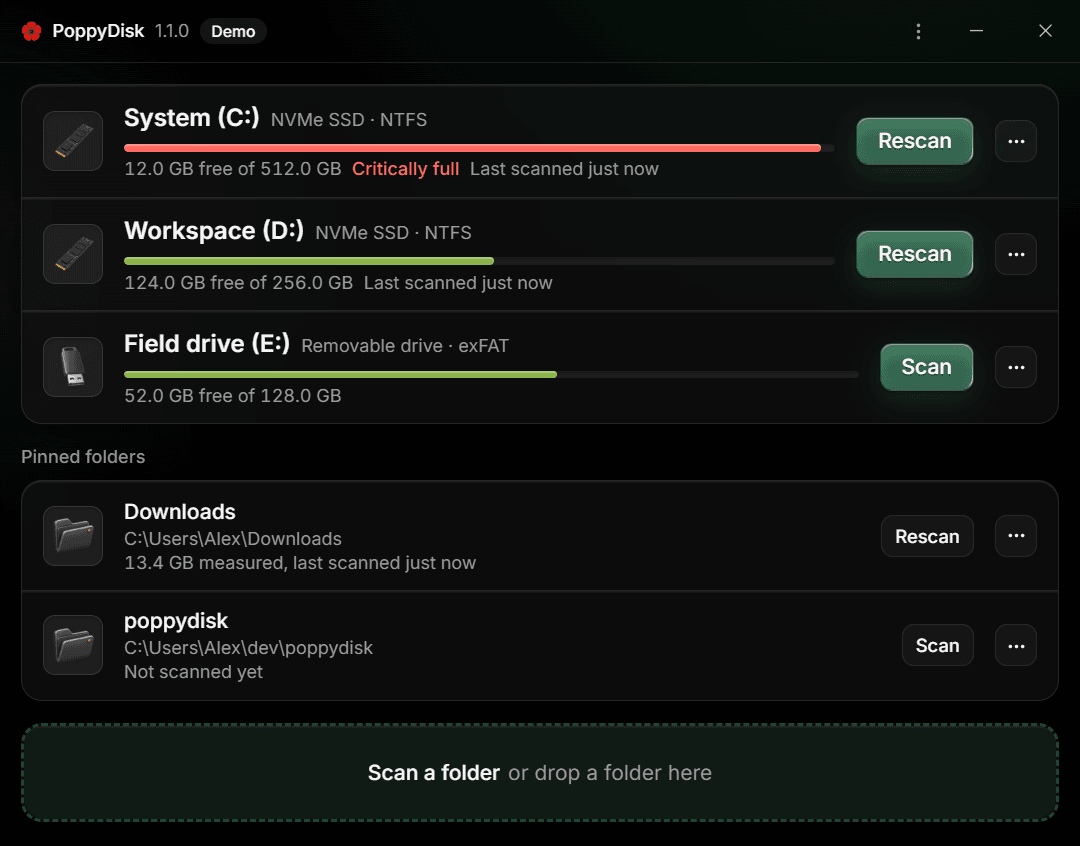
When you finish, the folder stays on the Drive Overview as a Pinned Folder, with its own Scan results, across launches.
Pin and scan a folder
-
On the Drive Overview, choose Scan a folder in the dashed area at the bottom. The Windows folder picker opens, titled Choose a folder to scan.
-
Choose the folder and confirm. The folder appears under Pinned folders with its name and full path, and a Scan of it starts at once.
Cancelling the picker changes nothing: no folder is pinned and no Scan starts.
-
Wait for the Scan to finish. The Scan view shows the folder's Disk Map, exactly as it does for a Drive. See Read the Disk Map.
You can also drag a folder from File Explorer and drop it on the dashed area. That pins the folder and starts its Scan in one move.
Use a Pinned Folder
A Pinned Folder stays on the Drive Overview until you unpin it, so a folder you clean regularly is one press away. Its row shows how much was measured and when it was last scanned, or Not scanned yet. If its Drive is not connected, the row says Drive not connected and waits.
- Choose Scan to measure it for the first time, or Rescan to measure it again and replace the saved result.
- Choose the row itself to open the existing result without scanning.
- The More actions menu offers the same Scan, Rescan, and Cancel Scan as a Drive, plus Forget results, which discards the saved result and keeps the pin, and Unpin.
Unpin a folder
Choose Unpin in the row's More actions menu. The entry leaves the Drive Overview. The folder and everything in it stay exactly where they were: unpinning removes only PoppyDisk's pin.
If the picker or the drop misbehaves
If the picker does not open, PoppyDisk reports Could not open the folder picker; if the folder cannot be pinned, it reports Could not pin the folder, with the reason. Dismiss the message and try again. See Fix scanning and results problems.
For everything about a Scan itself, including cancelling it and reading the result, see Scan a Drive.