 PoppyDisk User Guide
Review before you delete
The gate between collecting and deleting.
When you finish, you have a checked list of exactly what will be deleted, grouped by Risk, with the expected Size on Disk, and you have chosen which kind of deletion comes next.
Prerequisites
Before you start
- Items in the Cleanup Basket. See Collect items in the Cleanup Basket.
- The Clean Tier unlocked. See Buy the Clean Tier and unlock PoppyDisk. Demo Mode is always unlocked.
- If any branch of the Scan is marked Stale, refresh it first, so the sizes you are reading are current. See Refresh Stale results.
Open the review
Caution
This is the last screen before a real deletion. Opening it deletes nothing; the two buttons at its foot are where deletion begins.
- Choose Review on the Cleanup Basket bar. The Deletion Review opens and first shows Revalidating Cleanup Basket items while PoppyDisk checks every basket entry against the Drive again.
- Read the list. Items are grouped under Safe, Caution, Managed, and Protected, each with a count, and each row shows the item's path, its state, and its current Size on Disk. See Understand Risk.
- Read the foot of the dialog: how many items are selected and the Size on Disk expected to come back.
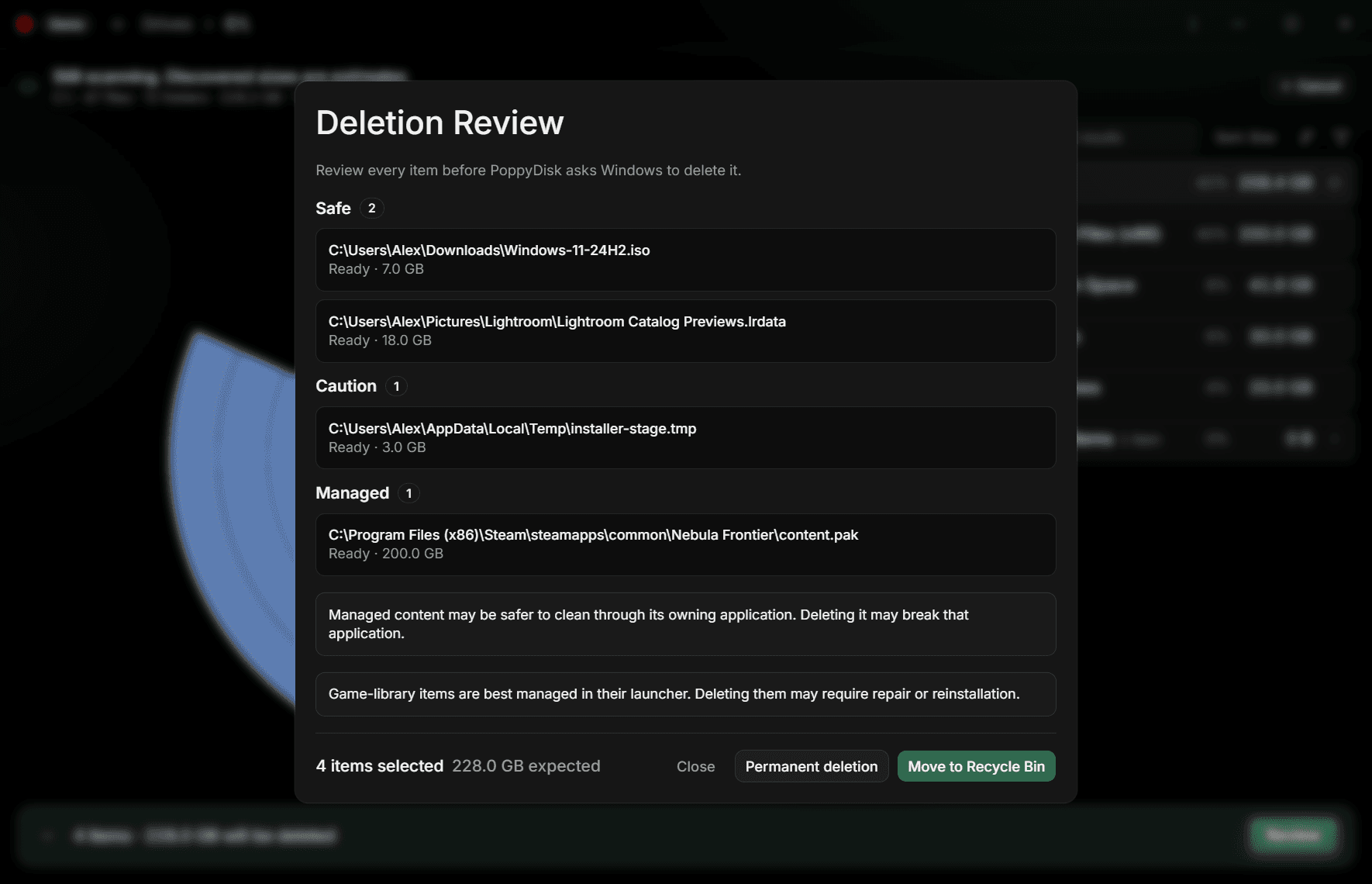
What each item's state means
- Ready: the item is exactly as it was when you collected it, and it is selected.
- Changed. Tick to include: the item's identity, size, modified time, access, risk level, or hard-link state changed since you collected it, and PoppyDisk says which. It is excluded until you tick its checkbox, which approves that exact current version. If it changes again before you confirm, the tick is cancelled and it is excluded again.
- Changed, excluded: the item changed in a way PoppyDisk cannot re-approve. Remove it from the basket and collect it again.
- Missing, excluded: the item is no longer on the Drive.
- Protected, excluded: the current rules grade the item Protected, so it will not be deleted whatever the basket says.
Under a row, Cloud-synchronized marks a file that lives with a sync provider, and a line in red means Windows is expected to reject the deletion, with the reason.
Below the list, PoppyDisk repeats the advisories that apply to the items you selected: that Managed content may be safer to clean through its owning application, that cloud-synchronized items may also be removed from other devices, that game-library items are best managed in their launcher, that hard-linked items count as 0 B expected recovery because another path may still reference the same data, and that a network or removable drive may not have a Recycle Bin, so Windows may permanently delete those items.
Choose the deletion
The foot of the review offers three buttons:
- Close returns to the Scan with nothing deleted and the basket unchanged.
- Move to Recycle Bin is the default and the one you can undo. See Delete to the Recycle Bin.
- Permanent deletion bypasses the Recycle Bin. There is no recovery. See Delete permanently.
Either button opens one more confirmation before anything happens.
If the review cannot open, PoppyDisk reports Deletion Review could not open. with the reason and offers Close. See Fix Cleanup Basket and deletion problems.